Ultra Zoom Camera HD on Android: How to Compare It With Your Phone Camera
Ultra Zoom Camera HD from ESIN GROUP PTE. LTD ranked third in the 16 November 2026 India trending tools chart tracked by AppsXray. Several Google Play apps use almost exactly the same title. If you want to try the charted release, match the developer name first. Then compare the photograph it saves with the one you can already take on your phone.
Which Ultra Zoom Camera HD app is on the chart?
The chart lists ESIN GROUP PTE. LTD. Its Google Play listing for India describes a camera app for taking photos and video. The package ends in esin.zoomcamera.camerahd. Other listings can use the same title while advertising different features. Use the verified developer and package if you want to compare someone else’s description or find the correct support page.
Read the current Play listing before choosing a camera app. Check the data safety section and the permissions Android displays when you open it. Camera access relates directly to capturing a photo. Beyond that, grant access according to what you want to do, such as saving an image or editing one already on the device.
What a zoom number tells you about the picture
Zoom changes how much of a scene fits inside the frame. A phone with a dedicated telephoto camera can capture a narrower view through that lens. A digital crop can also fill more of the display with the subject by using a smaller part of the original image. Android’s Camera2 documentation explains that a zoom ratio can combine optical and digital zoom. An app’s number by itself gives no breakdown of the two.
To tell whether a result is useful, check edges, text or repeated patterns in the saved file. A picture can look larger on the screen without showing finer detail. Sharpening and contrast can also make the preview look crisper than the final image when you inspect it at the same scale.
Compare the stock camera and app under the same conditions
Choose a still subject in good light, such as a sign with letters of different sizes. Keep the phone in the same position for both shots and try to frame the sign at the same size. Turn off any optional filters if the apps offer them. Then open both saved images and look at the letters at roughly the same magnification. Check readability and whether fine lines remain separate.
If the result is close, try a second subject at a different distance while keeping the phone steady. Repeat the test in the light you expect to use most often. Keep in mind that some phones can change the camera used depending on distance and lighting. This is why a result from one device or one scene can differ from another user’s example.
Save the files at their default settings before sending them through a messaging service. A service may create a smaller copy, which makes the comparison partly about compression rather than the camera. Also check the file dimensions in your gallery. The dimensions can tell you how large the saved image is, while the edges and lettering tell you how much usable detail it contains. Use both when deciding whether the app improved the shot.
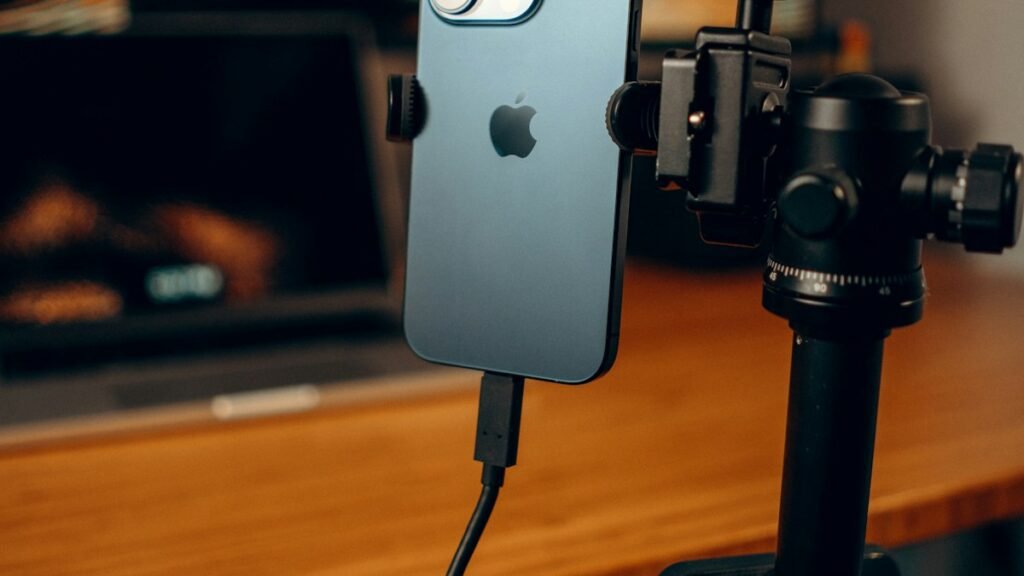
For everyday use, decide whether the extra app gives you a feature you need. That might be a control, a way to compose a shot or a different result in the saved image. If the larger preview is the only visible difference, you can also test a crop from the stock camera. The two files will show you what each workflow produced on your own phone. The featured photo illustrates a steady setup.