AirConsole on Android TV: Use Your Phone as a Multiplayer Controller
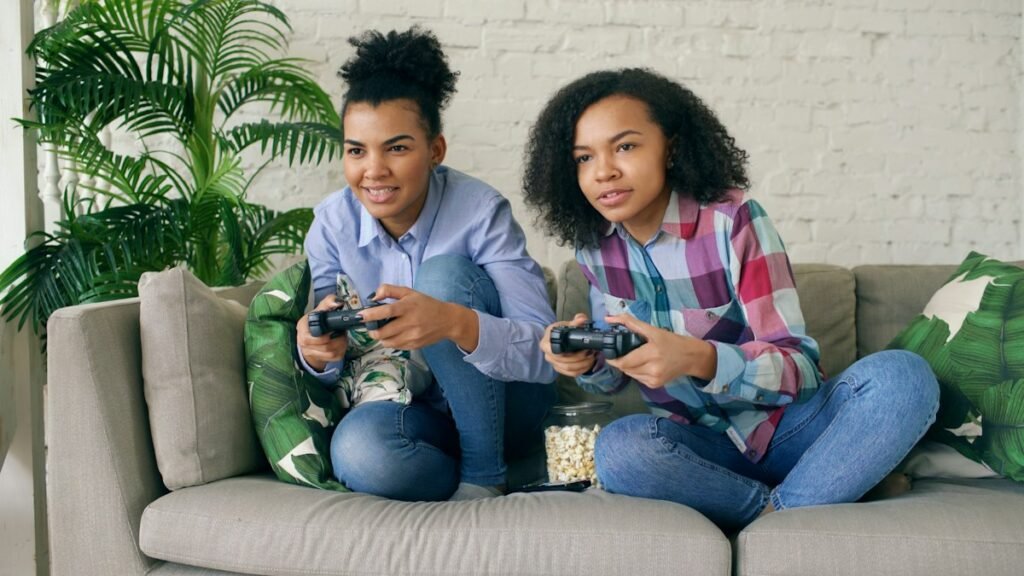
AirConsole appeared near the top of India’s Google Play trending games chart on 11 November, as tracked by AppsXray. The N-Dream service uses a TV or computer as the shared screen and phones as controllers. To play AirConsole on Android TV, open the TV app first, then connect each player’s phone using the code or QR image shown on the television.
The chart tracks current app interest and the ranking can change. The practical reason to look at AirConsole is that everyone can use a phone they already have. The first thing to check is whether the television or streaming device supports the TV app.
Install the screen app on the television
Open the Play Store on the television and look for AirConsole – TV Gaming Console by N-Dream. The TV app is separate from the phone controller app. AirConsole’s TV setup guide also lists Google TV, newer Chromecast models and Amazon Fire TV as options. Check the store on the device you actually plan to use, since a compatible TV platform does not guarantee that every model runs every game.
If the television uses Samsung Tizen, LG webOS or another platform without the dedicated app, AirConsole recommends a compatible streaming device or a computer connected to the TV by HDMI. With HDMI, switch to the correct input on the television, then open AirConsole in Chrome on the computer. The browser on a smart TV itself can have trouble loading games reliably.
Join the same lobby with each phone
Put the TV or computer and the phones on the same Wi-Fi network. Open AirConsole on the big screen and wait for the connect code or QR image. Each player can scan the QR image with their phone camera, or open the AirConsole controller app and enter the displayed code. The connection guide also describes joining through a phone browser.
Once the players appear in the lobby, the host can pick a game from the catalogue on the main screen. Each phone then shows the controls for that game. If one person gets stuck before joining, check that the code matches the screen you are using and that their phone has joined the same network. Start with one controller and add the second once the first appears in the lobby. That makes it easier to work out which connection needs attention.
If the television has a picture but the controller feels slow, try the dedicated phone app and move closer to the Wi-Fi access point. The provider’s system requirements recommend at least 8 Mbps and list Android 7 or later and iOS 15 or later for the controller apps. Check those requirements before troubleshooting an older phone.
Check player limits and the game catalogue
N-Dream’s phone listing describes the free Starter Pack as a rotating selection with ad breaks and a two-player maximum. That is enough to test a local game with one other person. If more people want to join, check the individual game’s player limit and the current AirConsole Hero terms. The listing says one Hero subscriber in a session can unlock its benefits for the group.
Game availability can differ across the TV and computer versions. The TV help page says some games ask for a separate Play Store installation and less powerful devices can see a smaller selection. If you are setting up for friends, launch one suitable game before they arrive. Check that the main screen shows the game, that both phones respond, and that the chosen mode supports the number of players you expect. Those checks tell you more about the setup than the app’s overall chart position.